
The NV-SB550DT I recently bought also plays videos. It has a built-in One Seg tuner and can record on a schedule, so I initially thought that if I wanted to watch recorded digital TV I could just record it on the unit itself. However, the NV-SB550DT’s One Seg scheduling only lets you specify a time; you cannot schedule from the program guide, which was quite inconvenient. I thought it would be more convenient to be able to play videos recorded at home (in the living room, etc.). Gorilla publishes the video formats it can play on its website. The main specs of the playable video formats are as follows.
| NV-SB550DT NV-SB570DT |
【Video format】 MPEG4 (up to Simple Profile Level 3) H.264 (up to Baseline Profile Level 2) Resolution 640x480 Max file size 512 MB Frame rate 15/30 fps Bit rate 216k to 2.0 Mbps |
|---|---|
| If you have encoded video before, you’ll know these specs are rather strict. The 512 MB file size cap is especially worth noting. An easy way to think about it: it’s about the level of video watched on a phone. | |
| Among the things I tried, I found a way to play a video file recorded on another device on the Gorilla (NV-SB550DT), so I’ll share it. Note that I cannot guarantee playback even if you follow this as-is, so try it at your own risk. | |
| Also, on models before the NV-SB550DT such as the NV-SB541DT, H.264 is not supported, so part of the method below may not work. Please be aware. |
Using DIGA’s “program export” #
If you have a Panasonic DIGA with the program-export function and an SD slot, you can write a recorded program to an SD card, which may then play on the NV-SB550DT. At home we have a DIGA BWT510 and use this method often.
- Blu-ray DIGA BWT510 — 2 tuners, 500 GB HDD (Search on Amazon)
- Blu-ray DIGA BZT710 — 3 tuners, 500 GB HDD (Search on Amazon)
Processing a ts file recorded with pt2 #
pt2 is hard to find now, but if you have one, you can encode data recorded with pt2 and play it on the Gorilla. The software I used for encoding was “TMPGEnc Video Mastering Works 5”; with the settings below, it played on the Gorilla. Use the “mobile MPEG file” output format, keep the bit rate at 2000 or below, set the size to 320x240, and adjust so the final file is 512 MB or less.
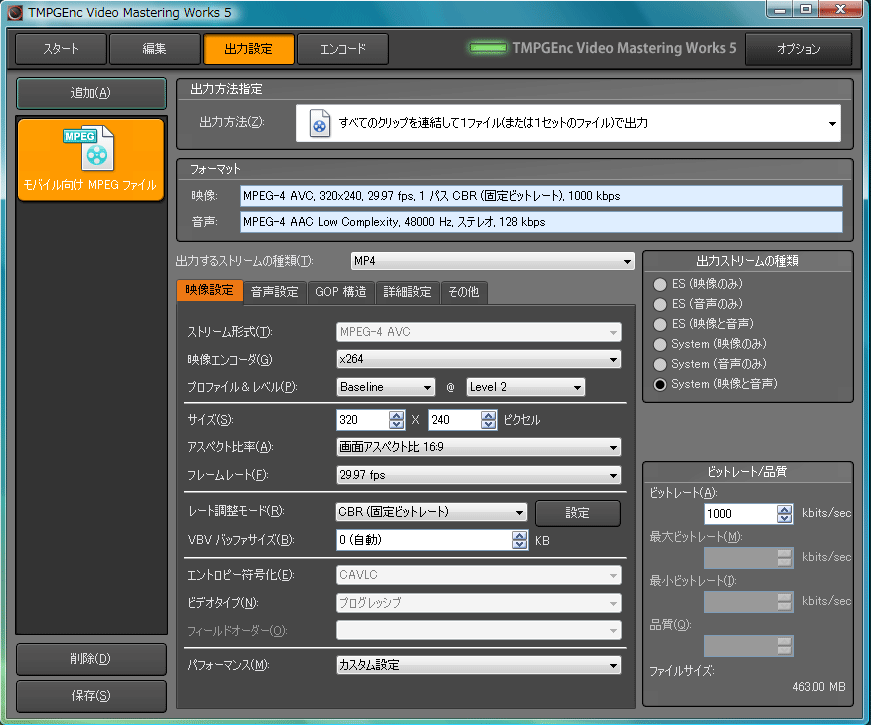 |
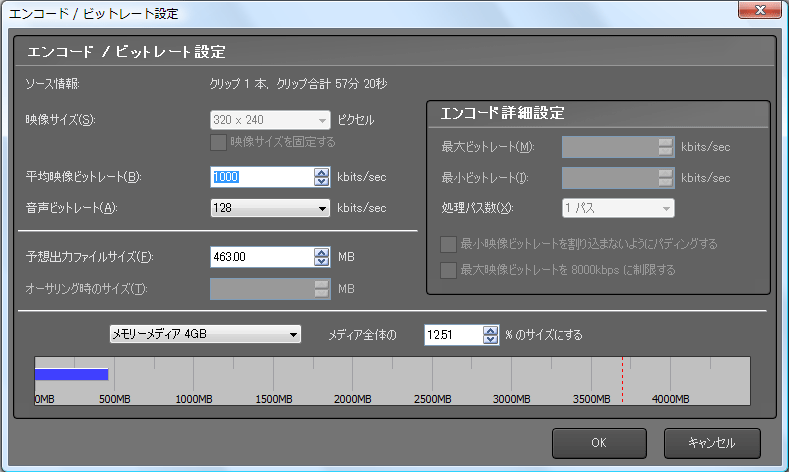 |
|---|
Recording with a Viera One Seg #
By “Viera” I mean the portable-type Viera. The waterproof type can be used in the bath and other places. I have the first-generation Viera One Seg (SV-ME75), and I was able to play an SD card recorded with it on the Gorilla. However, the Viera One Seg also cannot schedule from the program guide, so the scheduling inconvenience doesn’t change; it may just be a matter of struggling in the car or struggling in the room. Conversely, an SD card recorded with the Gorilla also played on the Viera One Seg. One Seg recording may have compatibility across many models.
| Viera One Seg |  |
|---|---|
| (Image from Panasonic’s website.) |
The failure story #
Even if you can record to an SD card, it doesn’t necessarily play on the Gorilla, so be careful.
Recording to an SD card on the Viera TH-L32RB3 doesn’t let me watch it on the Gorilla #
I bought the VIERA TH-L32RB3 (released 2011-09-09), which supports SD cards and has a built-in HDD and Blu-ray. It can record scheduled programs to an SD card, but the recording can only be played on the Viera that made it, so I couldn’t bring it to the Gorilla. The previous model (RB2) seemed to allow export to a phone, so the new model actually downgraded the feature. I was reminded again to check spec changes before buying. Catalogs list what became “possible”, but normally not what became “impossible”. It was an expensive purchase, so the shock when I found out was big. Well, I should have looked it up before buying.
 |
It can record to an SD card, so I thought it would play on the Gorilla, but in fact it was restricted to playback only on the Viera that recorded it. |
|---|---|
| (Image from Panasonic’s website.) |